 Copyrighted
How it works · read, sort, stamp, undo
How Copyrighted works
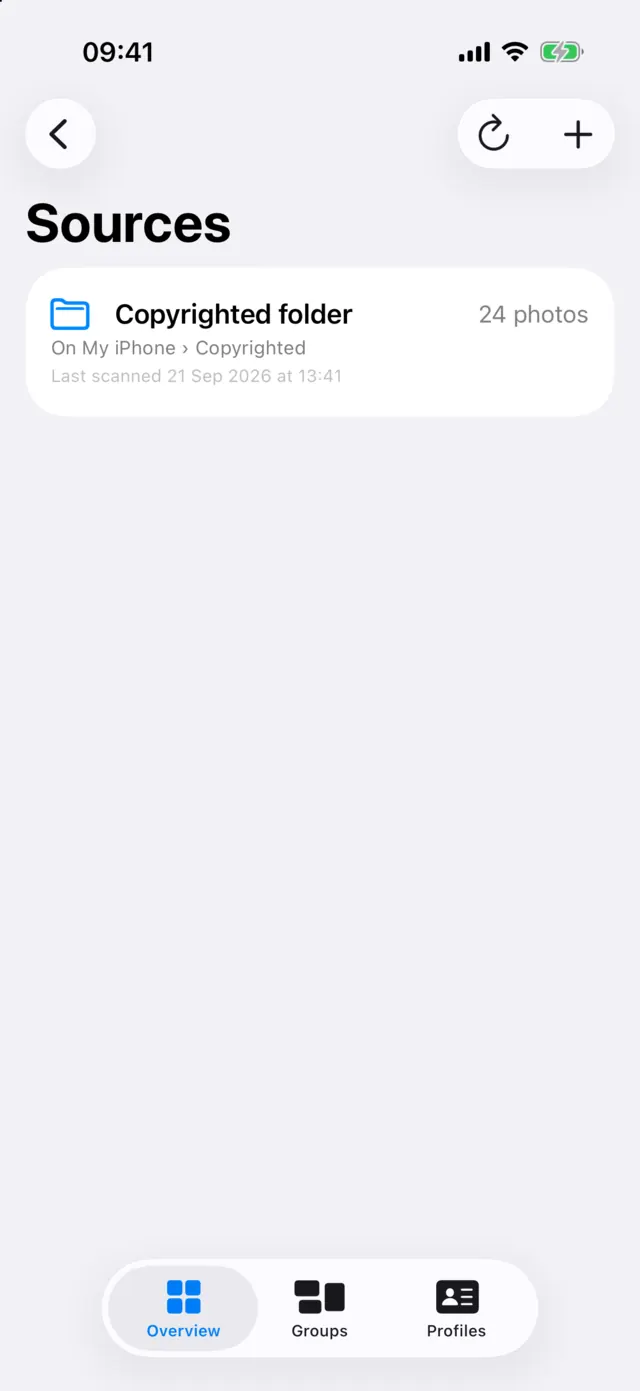
Scan your photos, see who owns what, save your details once, and stamp a whole group at a time. Every write is checked before it counts, and every batch can be undone.
- ScanRead the copyright fields in every photo.
- GroupSort them into Matches you, Third-party, Blank and Conflicting.
- ProfileSave your notice, name, credit and website once.
- StampAdd missing, Update or Remove, in bulk.
- VerifyRead each photo back before it replaces anything.
- UndoReverse any batch from History.
Where your photos come from
Copyrighted works with two kinds of source, and treats their photos the same way once they are scanned.
- Folders. On a Mac, any folder you choose. On an iPhone or iPad, a folder you pick in Files, and the app's own Copyrighted folder. The app reads and writes these files in place.
- Your Photos library. The whole library, an album or a selection of photos. The app reads each photo's original, and writes by saving a stamped copy.
A whole-library scan runs while the app is open, newest photos first, and picks up where it stopped. It reads only the start of each original, where the metadata lives. A photo whose original is only in iCloud isn't downloaded; it is counted in a group called In iCloud only. Sources are checked again quietly each time you return to the app.
The Overview screen also shows your 50 most recent photos. Tap one to stamp it with your default profile.
The four groups
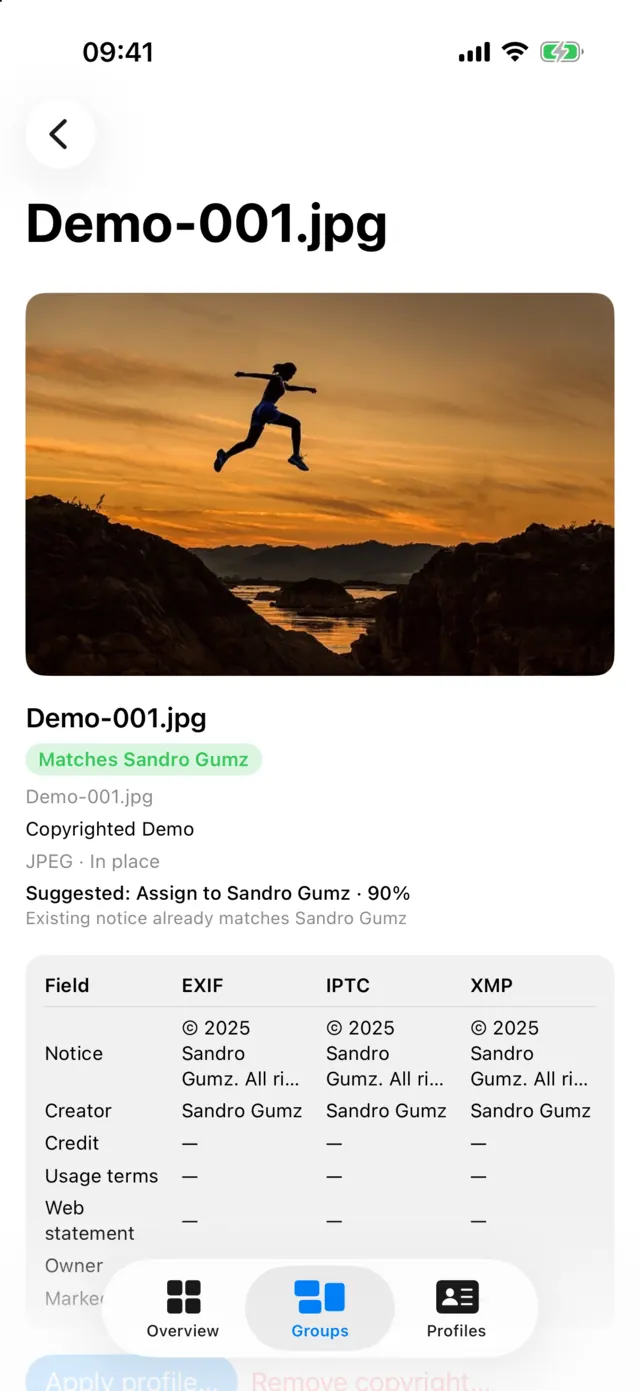
Every scanned photo lands in one group, decided by what its fields say:
- Matches you: its copyright notice matches one of your Rights Profiles, in any year. A photo with no notice matches if it names your profile's creator.
- Third-party: it names someone else.
- Blank: no copyright notice and no creator in any layer.
- Conflicting: its layers disagree on at least one field, such as EXIF naming one owner and IPTC another.
The fields compared are the notice, creator, credit, usage terms, web statement, owner and copyright status. Open any photo to see what each layer says, side by side.
Rights Profiles
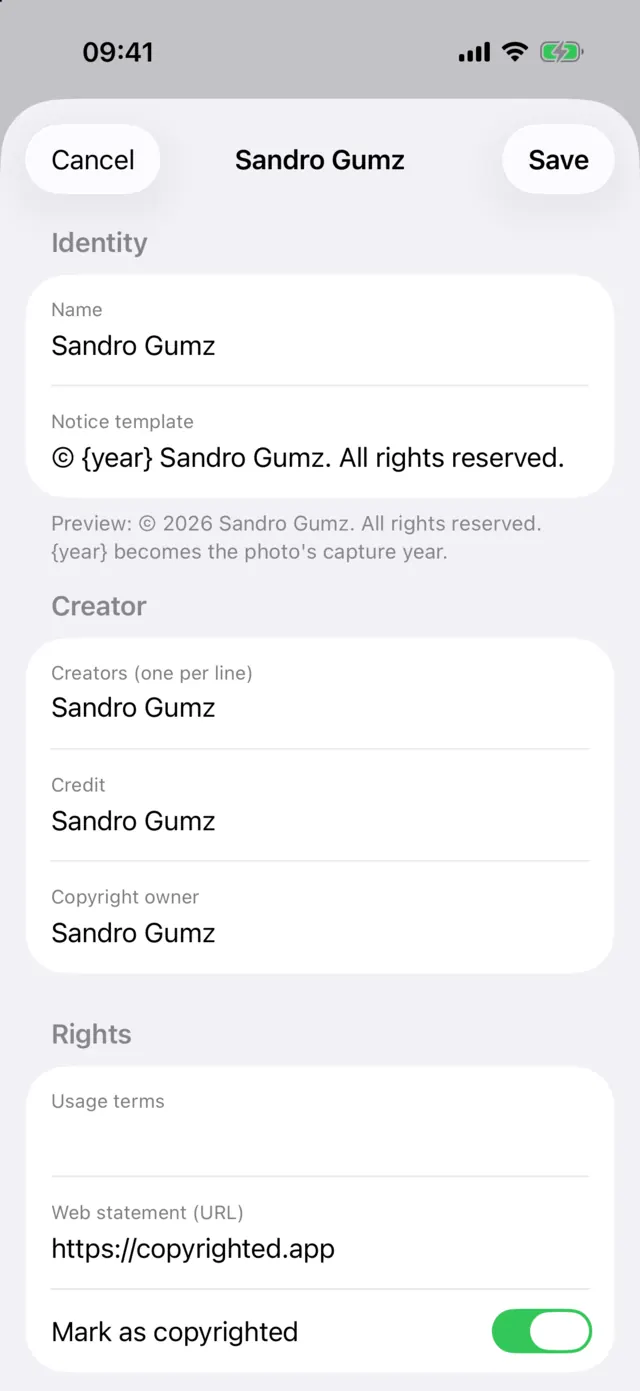
A Rights Profile is a set of details you save once and stamp many times: a copyright notice, one or more creators, a credit line, usage terms, a website for your web statement, a copyright owner and a copyright status.
Write the notice as © {year} Your Name and each photo gets the year it was taken, or the current year if it has no capture date. Make as many profiles as you need, for yourself, a studio or a client, and choose which one is the default. The share sheet, Messages and the recent-photos strip start with the default.
Add missing, Update and Remove
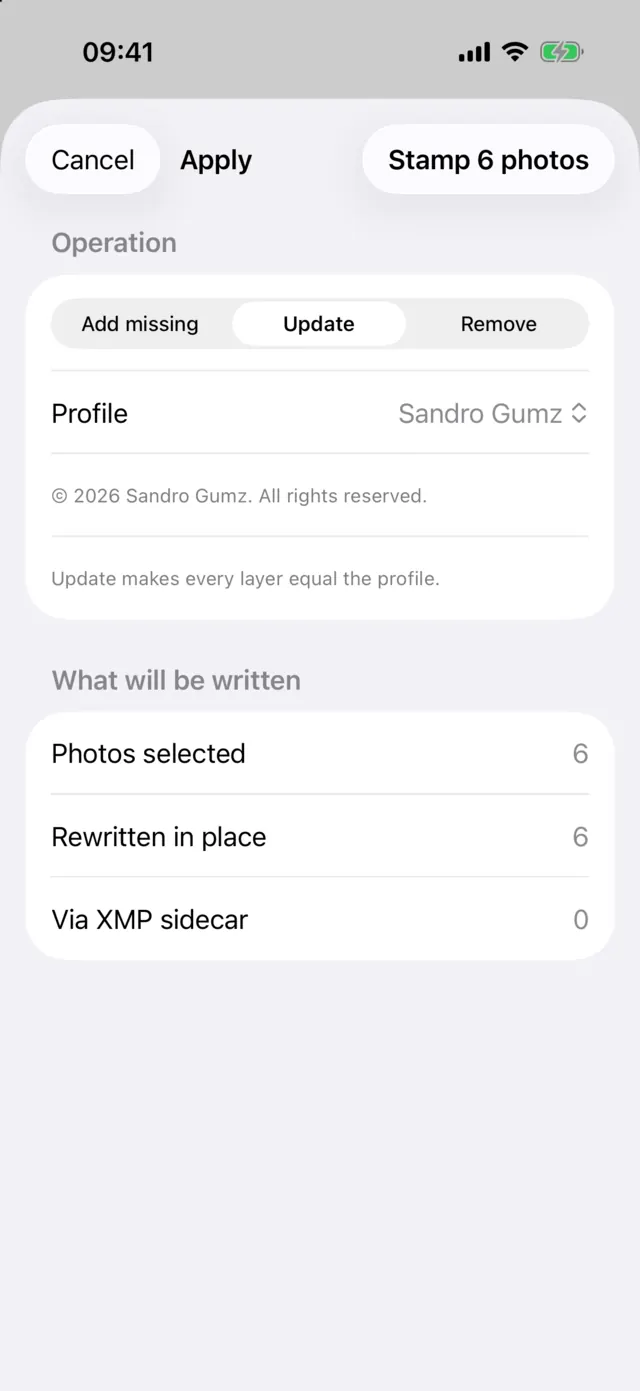
Select photos, tap Apply, and choose one operation:
- Add missing fills only empty fields and never changes a value that is already there. Where a field has a value in one layer and not another, the value is copied across. A Conflicting photo is left alone, with a note naming the fields that disagree.
- Update makes every layer equal your profile. This is how a Conflicting photo, or one with an old studio's name, is fixed.
- Remove clears every copyright field in every layer, including Source. It is free. Use it only on photos you have the right to change: removing copyright information from someone else's work can have legal consequences in some countries.
Before anything is written, the Apply sheet shows how many photos will be rewritten in place, written via an XMP sidecar, saved to Photos or skipped, and why.
What gets written where
- JPEG and TIFF files are rewritten in place, in EXIF, IPTC and XMP. The image is never re-encoded.
- HEIC and PNG files are rewritten in place in EXIF and XMP, the layers these formats carry, without re-encoding.
- RAW and DNG files are never opened for writing. Your copyright goes into an XMP sidecar beside the file, created if there is none.
- Photos library photos get a stamped copy, saved to an album called Copyrighted and named after the original, such as
IMG_4471-cr.JPG. The original stays untouched. An edited photo's copy is made from Photos' own rendering of the edit. RAW photos in the library are read, but not stamped.
Some files are skipped and left exactly as they were: camera JPEGs with maker data that can't be carried through a rewrite, a file that can't be written safely, and anything that fails its check. The results say which, and why.
Under Settings you can choose how copies are named, and turn on an option, off by default, that deletes a library original once its stamped copy is verified. It never deletes a Live Photo, an edited photo, or one that belongs to another album, and Photos asks you to confirm.
Journal, verify, undo
Every write follows the same sequence:
- Journal. What the photo says now is recorded before anything changes.
- Re-check. Right before writing, each photo is checked against the scan. If it changed and its copyright is still what you were shown, it is written. If its copyright changed, it is held back.
- Write to a copy. The new metadata goes into a temporary file.
- Verify. The temporary file is read back. Only if it says exactly what you asked does it replace the original. Otherwise the original stays.
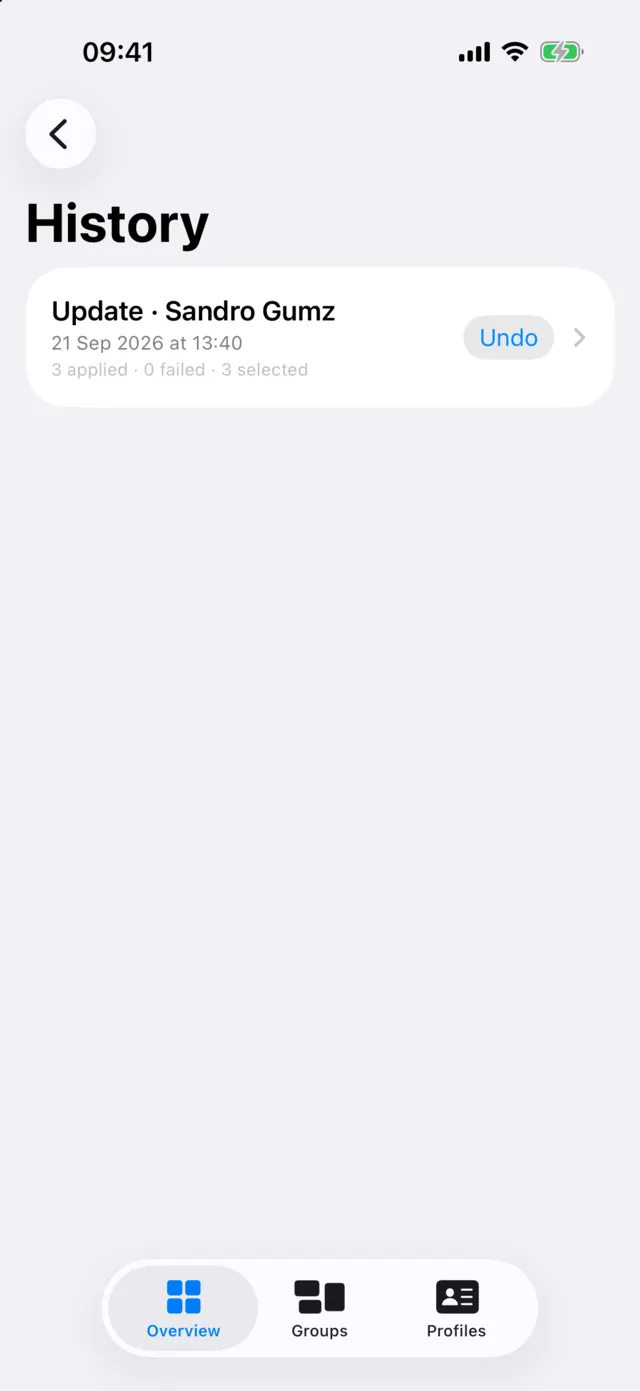
A batch carries on past a photo that fails, and reports it. Every batch then appears in History, where Undo puts each photo back the way it was. For copies in Photos, undo deletes the copies, and Photos asks you once to confirm. A write that resolved a conflict can't recreate the conflict, so undo skips that photo and says so.
The 50 free stamps
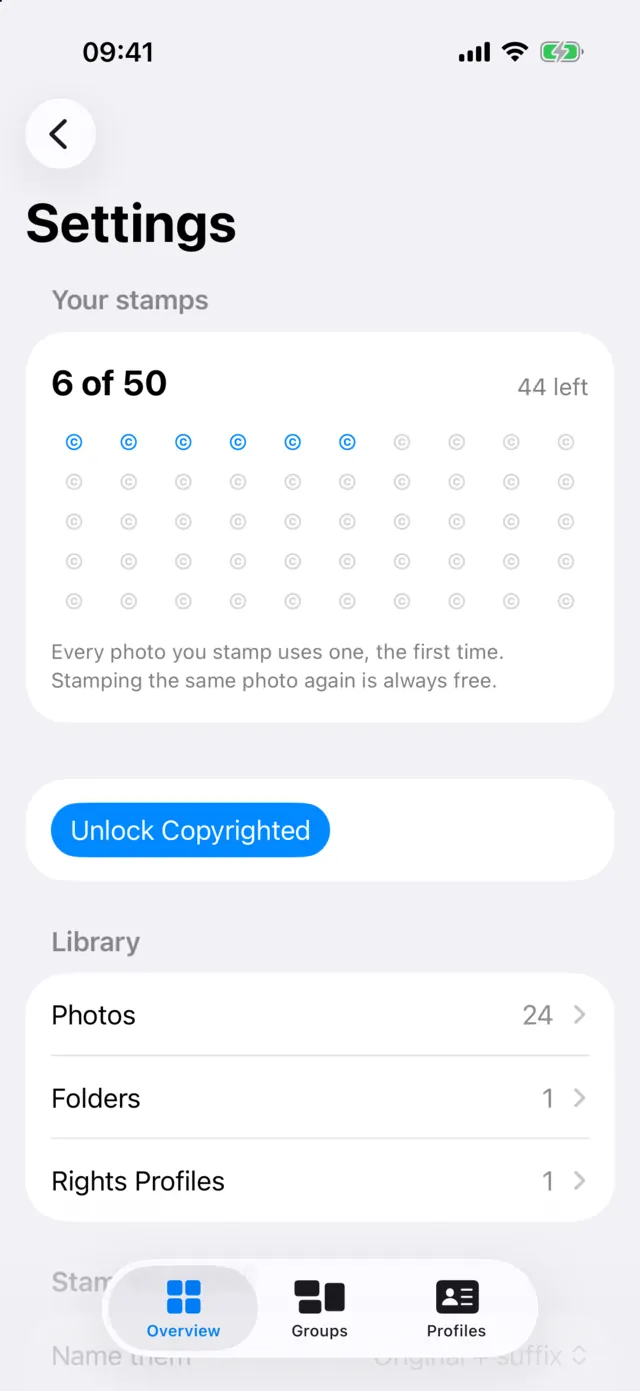
Scanning, grouping, checking and Copyright Info are free. So is stamping your first 50 photos on each device. A photo counts once, the first time it is stamped successfully. Stamping it again, undoing it or removing its copyright costs nothing, and Messages stamps are never counted.
When a batch is bigger than what is left, the app stamps what fits and names the rest. Copyrighted Pro removes the limit.
Try it on your photos.
Download Copyrighted free, scan a folder or your library, and see who your photos say they belong to. Or check a single photo in your browser first.


